Solarxy, part two: what you can see and click in v0.6.0
The first half of Solarxy v0.6.0 you can see and click: a dockable workspace, new inspection modes, a material inspector, and review notes anchored on the model itself.
Engineering / May 25, 2026 / 7 min read
- #rust
- #computer-graphics
- #ux
- #validation
- #open-source
A few weeks ago I wrote about Solarxy, the 3D model viewer and debugger I build in Rust on nights and weekends. Two releases have shipped since, v0.5.0 and v0.6.0, and the solution has grown up.
This is Part 2. It is about the first half of v0.6.0 you can see and click. The window you open, the model you import, and the things the app now does to help you spot what is broken. Part 3 will be about the other half, the part that runs on its own inside a build pipeline. I will say a little about that at the end.
If you are new here, the short version. You give Solarxy a 3D model, an OBJ, STL, PLY, or glTF file. It shows you the model with realistic lighting, and it tells you what is wrong with it. Missing texture coordinates. Surfaces facing the wrong way. Holes in the mesh. Parts that are heavier than they should be. It is free, open source, and runs on Windows, macOS, and Linux.
What it looks like now
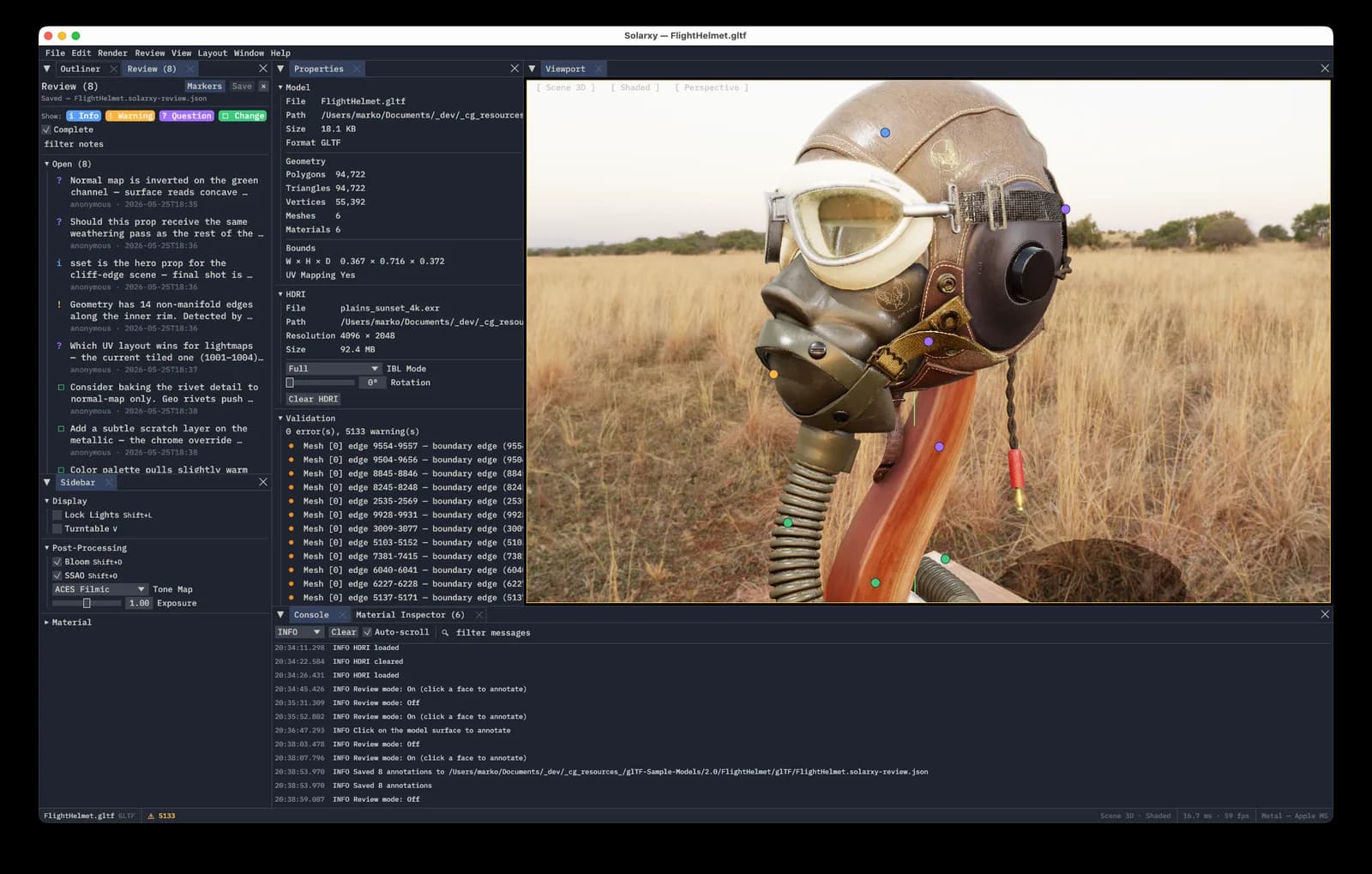
The first thing that changed is the layout. The window is now built from panels you can drag, resize, hide, and stack however suits you. There are seven: the Viewport (the 3D view itself), a Sidebar, an Outliner, Properties, a Review Panel, a Console, and a Material Inspector. Arrange them once and Solarxy remembers. A new Layout menu lets you save, restore, and reset arrangements by hand.
The look is a theme called Ayu Mirage. It comes in dark and light, and you switch between them instantly in the settings, no restart. There is one amber highlight color and almost nothing else competing for your eye. The reasoning is simple. The model is the thing you came to look at. Everything else should stay quiet and get out of the way.
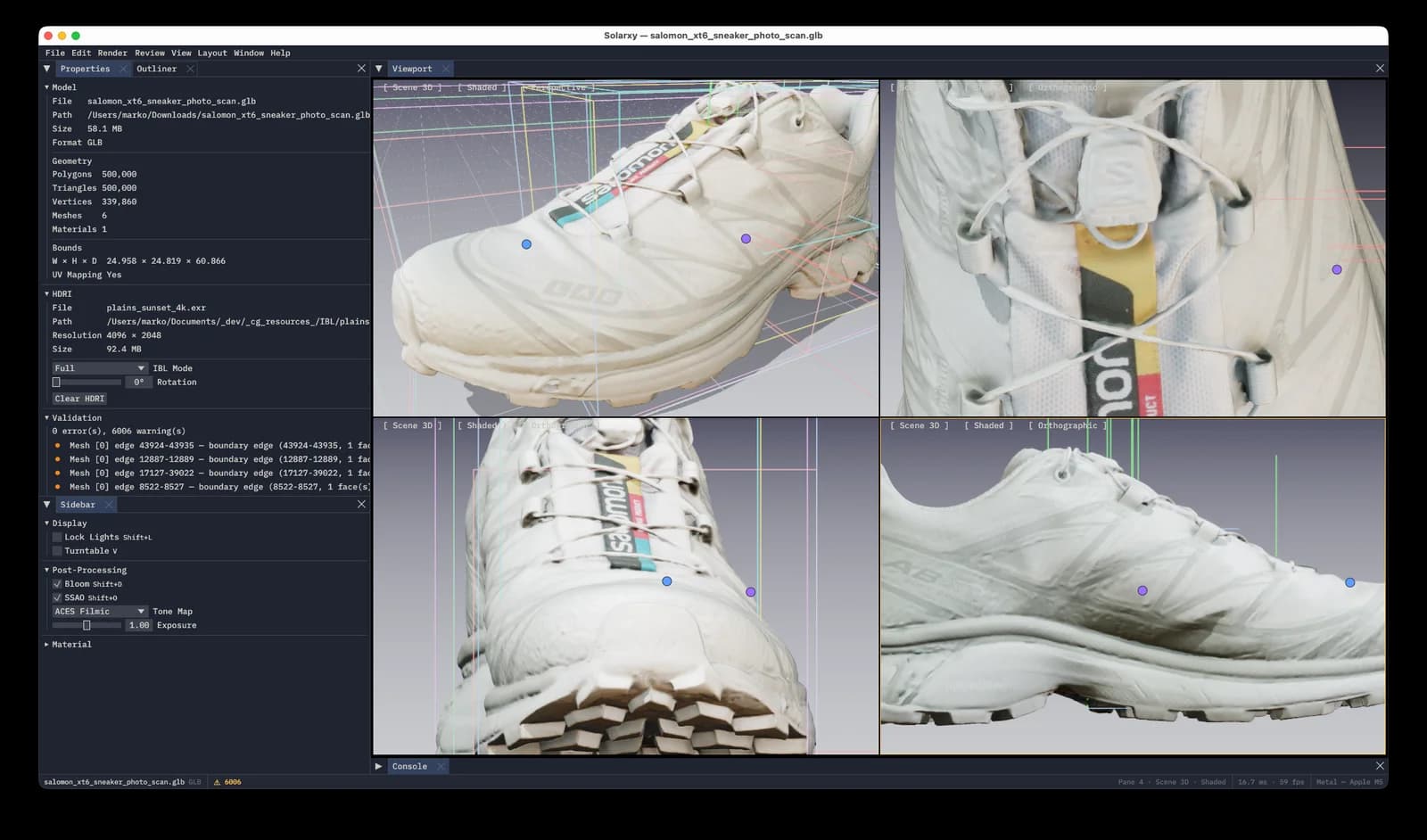
You can also split the view. One key gives you a single pane, others give you two, three, or four at once, each with its own camera and its own way of showing the model. It is useful when you want to see the finished surface, the wireframe, and the texture layout all at the same time.
Seeing the model from every angle
Looking at the model normally is only the start. Solarxy has a set of inspection modes, each one a single key press, that strip the model down to one kind of information at a time.
There are seven modes. Most carried over from earlier versions: plain shaded, a flat color per material, the texture layout, a texture-resolution heatmap, and a depth view. Two are new in v0.6.0.
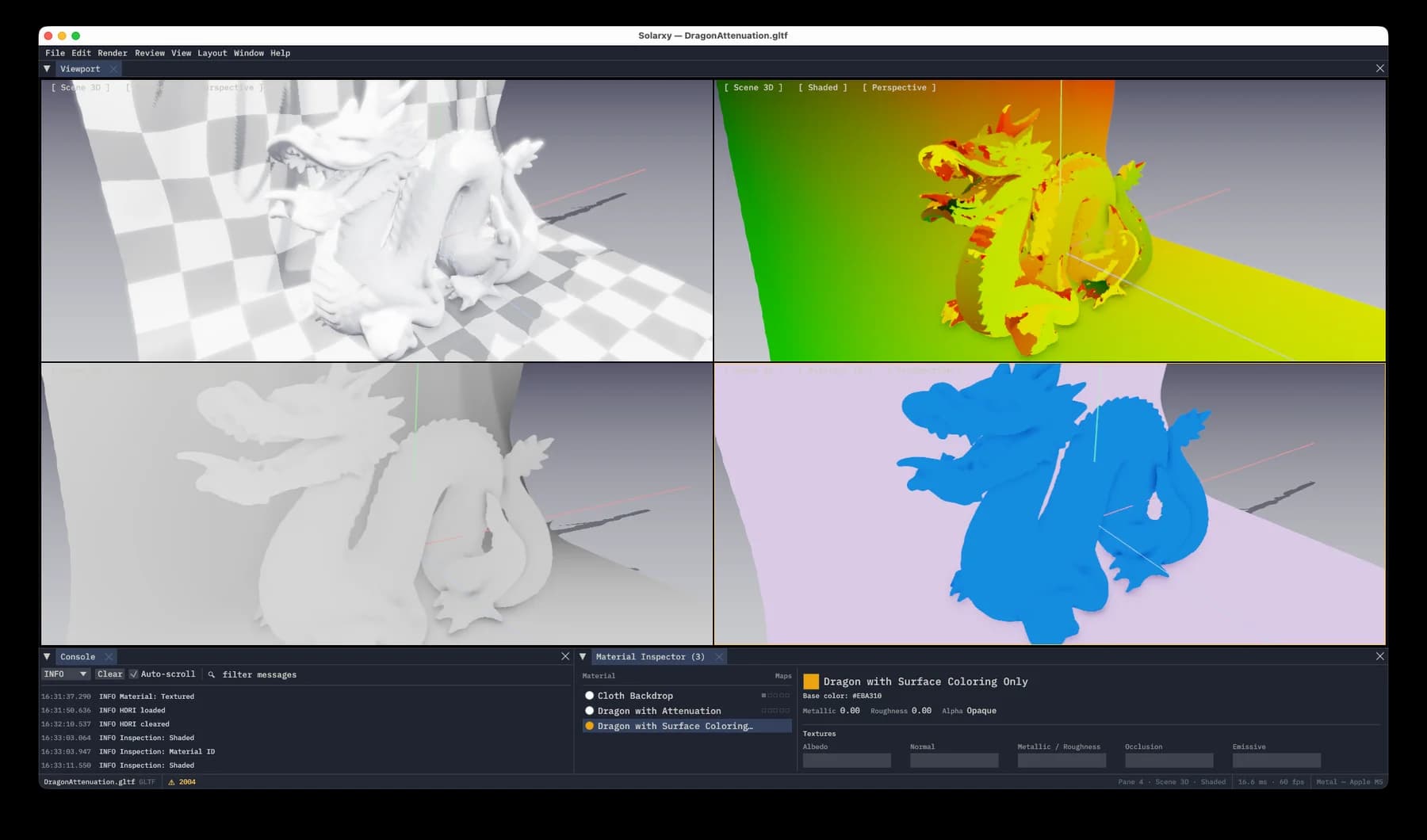
Press 6 for Overdraw. This answers a speed question. It counts how many times each pixel on screen gets painted, then colors the result, blue for once, red for six times or more. On something like foliage, where dozens of transparent leaves overlap, the red areas are exactly where your graphics card is working hardest. You used to need a separate profiling tool to see this. Now it is one key.
Press 7 for AO Preview. This shows just the soft contact shadows, the gentle darkening where two surfaces meet, with all the color and lighting taken away. It is the fastest way to read pure shape. Every crease, seam, and tight corner goes dark. If you sculpt, it looks like a clay render with the detail turned up.
Hiding parts to see parts
Real models are rarely one clean object. Here is a tree. It is twenty-six separate pieces, bark plus several kinds of leaves, and it came in with over twenty-three thousand warnings. It looks lovely. Underneath it is a mess, which is the normal state of a real asset.
When a model has this many parts, you want to look at a few at a time. The Outliner panel lists every mesh and every material with a checkbox beside it. Uncheck the bark and only the leaves are left. Now you can study just the leaf cards, see how they are built, and work out whether they are what is dragging the warning count up.
Checking the materials
Most of checking an asset is really just confirming that what is in the file matches what the artist meant to put there. The Material Inspector does that in one place. Open it from the Window menu, and for each material it shows the base color, the key numbers (how metallic, how rough, how see-through), and small thumbnails of all five texture maps a glTF material can carry: color, normal, metal-roughness, occlusion, and glow.
It is view only. Solarxy checks assets, it does not edit them. The first time I dropped a model in and saw all five maps lined up next to their numbers, I realized how many times over the years I had opened textures one by one in Photoshop just to find out what was actually in them.
Leaving notes on the model itself
This is the biggest new thing in v0.6.0, and the one that took the longest to build. It is a way to leave feedback directly on the model.
Today, most asset feedback happens as screenshots in chat with red circles drawn on them. The back of the strap looks off. This edge is too sharp. The trouble is that the screenshot is separate from the model, and a few rounds later nobody is sure which version the note was even about. Solarxy makes the note part of the model.
Press Shift+R to start. Click anywhere on the surface and type your note. Pick a type: Info, Warning, Question, or Change. The note sticks to the exact spot you clicked. It shows up as a colored pin on the model and as a row in the Review Panel, which you can filter and search.
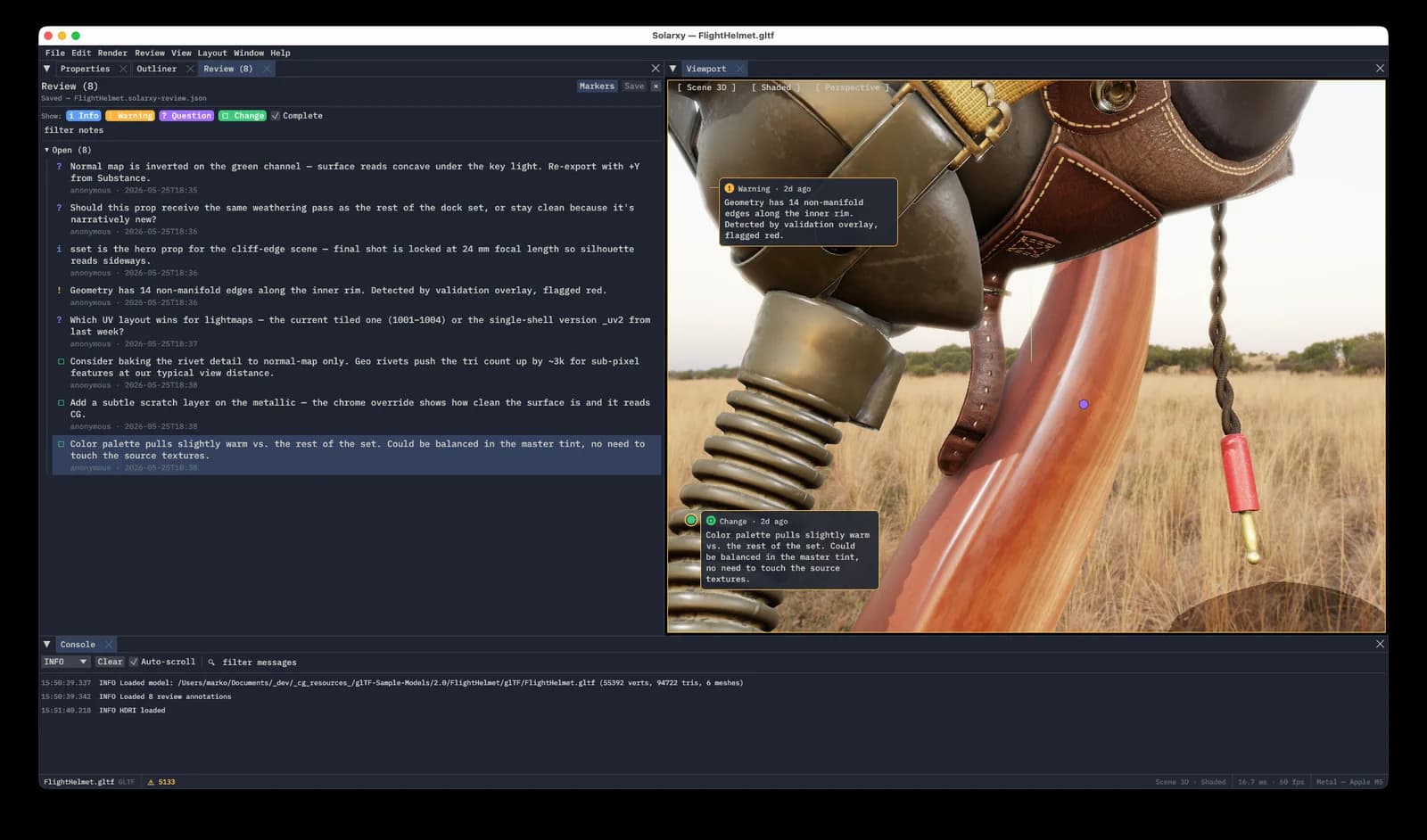
Save, and Solarxy writes a small text file next to the model, ending in .solarxy-review.json. That file is meant to live in version control right beside the model, so it travels with the asset. A teammate opens the same model, the notes load on their own, and they can reply, mark a note done, or ask a question back.
The careful part is what happens when the model changes. A note is not pinned to a point floating in space. It is pinned to an exact spot on a specific triangle, so a small re-export drops it back in the right place by itself. If the model is rebuilt from scratch with new geometry, Solarxy notices (it keeps a fingerprint of the shape), dims the affected notes instead of losing them, and gives you a one-click place-it-here-again so you re-pin each one exactly where you mean.
Two deliberate choices worth mentioning. Your name is attached only if you opt in, by setting it in your config. Solarxy does not quietly pull it from your computer or your Git account. And if two people edit the same notes file, that is just a normal merge in Git, like any other text file. The world has enough custom tools for resolving conflicts.
And it runs in your pipeline too
One last thing, because people always ask. Everything above is the app you sit in front of. The same engine also runs with no window at all.
From a terminal, solarxy-cli --mode analyze opens a model and runs the very same checks the app does, then lays them out in a tidy text interface you can scroll through, sorted into tabs for the model, its meshes, its materials, and its problems. Same checks, same numbers, no graphics card needed.
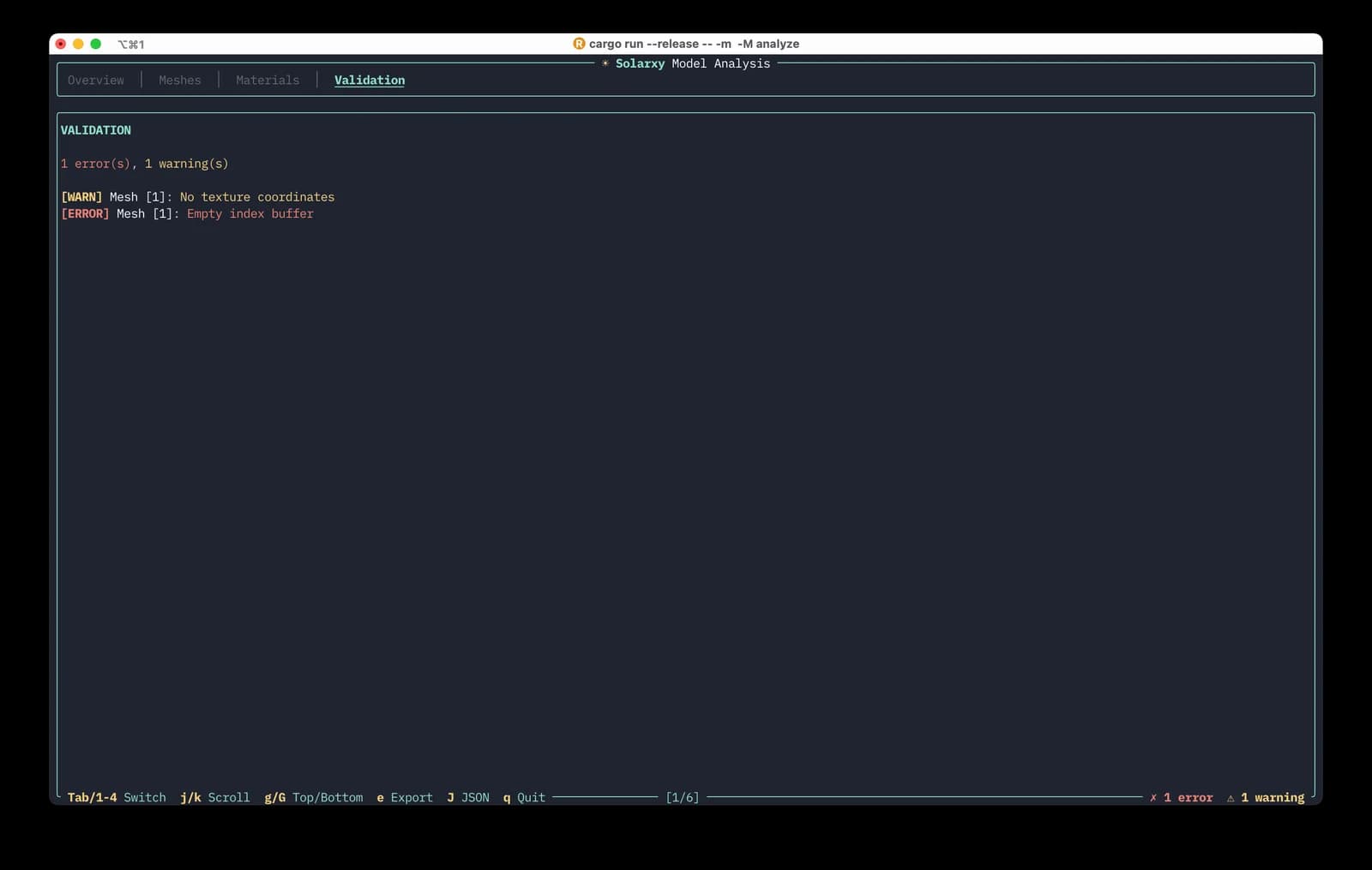
Because it needs no window, it runs anywhere a plain server does, including inside an automated build pipeline. Point it at a folder of models and it gives back a simple pass or fail, the same way a unit test does. So a broken asset gets caught the moment someone commits it, before anyone opens it by hand. Wire it into GitHub, GitLab, or Jenkins and the result lands right next to the rest of your checks.
That is all I will tease of Part 3 for now, so I will leave the details there. The point is simple. The thing that helps you catch problems at your desk is the same thing that can catch them for your whole team, automatically.
Grab it, and the road to 1.0
It is free and open source, and installing it just got easier. On macOS, Homebrew now covers it both ways: a cask for the app, or a formula for just the command-line tool. Linux has a Flathub build and Windows has a winget package, with direct downloads on the releases page for everything else. The repository and the full guide are on GitHub and the wiki. Once it is installed, drop a model on it and press a few number keys to see your model different ways. Press Shift+R and leave yourself a note.
What I would most like to know is where it breaks on your files. I have run it against a lot of models, but real production assets are stranger than anything I can make up. Open an issue with the model attached and I will fix what breaks. If you want to see where this is heading, the road to Solarxy 1.0 is laid out on the project board on GitHub. It is the honest version of the plan: what I am building, what I am still deciding on, and roughly the order I expect to get to it.